Header & navigation
The Header section controls your logo, main menu, and the utility icons in the top bar. It sits above every page on your store and shares the color scheme and padding conventions used across Akira.

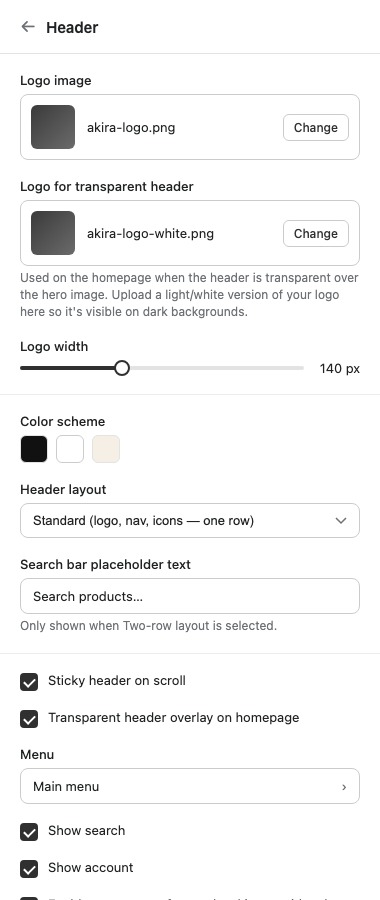
Logo
Upload your logo directly in the theme editor using the Logo image setting, no code or file uploads to the assets folder required. Use the Logo width slider to control how large it renders in the header.
If you enable the transparent header overlay for the homepage, also fill in Logo for transparent header with a light or white version of your logo, so it stays visible against a dark hero image.
Settings
| Setting | What it does |
|---|---|
| Logo image | Uploads your logo as an image file. |
| Logo for transparent header | Light/white version of your logo, shown when the header is transparent over the homepage hero. |
| Logo width | Controls the display width of the logo in the header. |
| Color scheme | Sets the color scheme applied to the header. |
| Header layout | Chooses the arrangement of logo, menu, and icons in the header. |
| Search bar placeholder text | Placeholder text shown in the search bar. Only shown when the Two-row layout is selected. |
| Sticky header on scroll | Keeps the header visible at the top of the viewport as the customer scrolls down the page. |
| Transparent header overlay on homepage | Makes the header transparent and overlays it on the homepage hero, rather than sitting on a solid background. |
| Menu | Selects the menu (link list) used for the main navigation. |
| Show search | Toggles the search icon or search bar in the header. |
| Show account | Toggles the account icon in the header. |
| Enable mega menu for top-level items with sub-menus | Turns any top-level menu item that has a sub-menu into a mega menu dropdown. |
Mega menu
When Enable mega menu for top-level items with sub-menus is turned on, any top-level menu item that has nested links in its menu (built under Content > Menus in your Shopify admin) automatically opens as a full-width dropdown instead of a simple flyout list. There's nothing to link up by hand, the menu structure itself decides which items get the mega menu treatment.
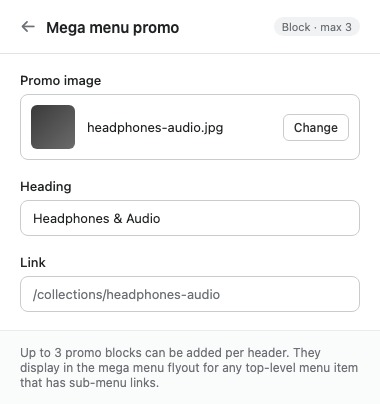
To add promotional imagery inside that dropdown, add a Mega menu promo block to the Header section (up to 3 per header). Each block has its own image, heading, and link, and promo blocks display alongside the menu's linked items in every mega menu dropdown, they aren't tied to one specific menu item.
Note: Akira's mega menu promos always render at a fixed size and position within the dropdown. If you need to control which menu item a promo appears under, or adjust its width and column position, that level of control isn't available yet, only the promo content itself (image, heading, link) is configurable.
Tip: If you turn on the transparent header overlay for the homepage, always fill in the transparent-header logo field too. Without it, your regular logo can be hard to read against a bright hero image.