
Live Odoo Connector
Technical Documentation
Welcome to the future of ERP integration. The Live Odoo Connector creates a real-time, bidirectional bridge between your Shopify storefront and your Odoo backend. Built on a distributed Redis architecture, it handles high-volume syncing without timeouts.
Real-Time Sync
Webhooks trigger instant updates for Orders and Inventory.
Secure by Design
AES-256 Encryption for all Odoo credentials.
Redis Queues
Dual-lane processing prevents server overload.
Installation & Setup
Getting started is simple. Follow these steps to authenticate the connector.
- Odoo v14, v15, v16, v17, or v18.
- User with access to Sales, Inventory, and Contacts.
1. Configuration Steps
- Install the app and navigate to the Settings tab.
- Enter your Odoo URL (e.g.,
https://my-db.odoo.com).
Do not include /web or trailing slashes. - Enter your Database Name, Username, and Password.
- Click "Load Companies". If successful, select your company and click Save.
URL: https://tripster.odoo.com
DB: tripster_production_v17
User: api_connector@tripster.com
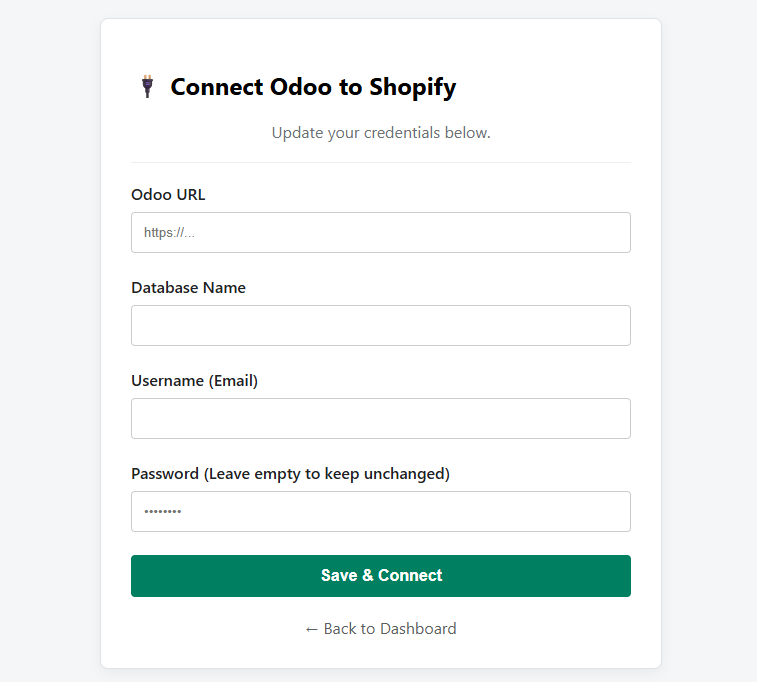
Figure 1: Connection Settings Panel
Product Synchronization
We treat Odoo as the "Master" database. Data flows from Odoo → Shopify.
The Golden Rule
SKU must exactly match the Odoo Internal Reference.
| Field | Sync Behavior |
|---|---|
| Price | Syncs from Odoo list_price. Can be tax-inclusive or exclusive based on settings. |
| Inventory | Syncs qty_available minus reserved stock. |
| Images | Syncs main image only if the MD5 hash changes (saves bandwidth). |
Inventory Rules
The connector uses a scheduled job (every 30 mins) and real-time triggers to keep stock in sync.
Multi-Warehouse Logic
In the Settings tab, you must select which Odoo Locations contribute to Shopify stock. The formula is:
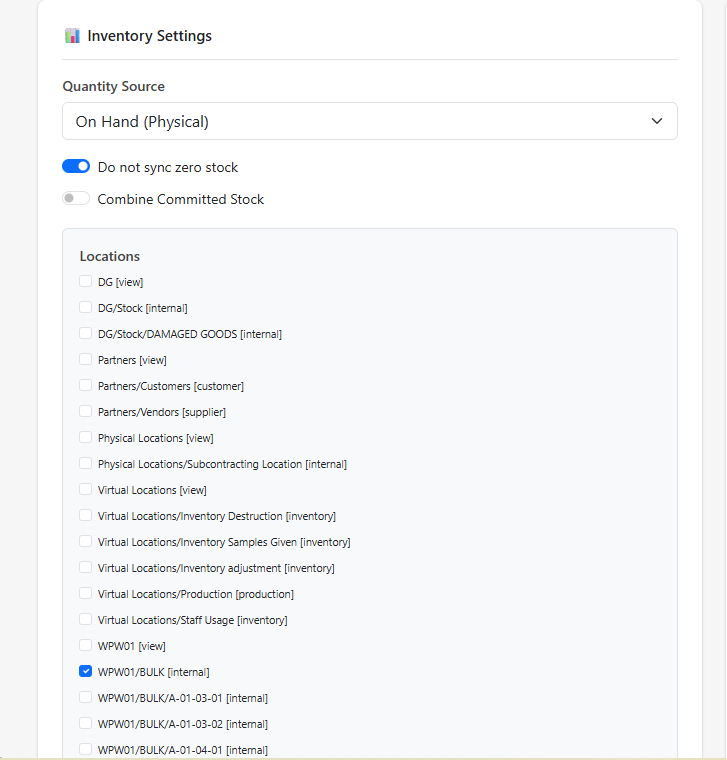
Zero Stock Handling
If stock reaches 0 in Odoo, we update Shopify to 0. Use the "Do not sync zero stock" checkbox if you want to keep products active for pre-order.
Order Processing
Orders flow from Shopify → Odoo. This process is immediate via Webhooks.
Workflow
We search Odoo for the email address. If found, we link it. If not, we create a new Contact.
We loop through lines and find Odoo products by SKU. Missing SKUs are added as text notes.
Shipping is added as a service line. Taxes are mapped automatically.
FAQ & Troubleshooting
Error: "Odoo Login Failed"
Why is my stock 0?
2. Do you have "On Hand" stock or just "Forecasted"? Check your Quantity Source setting.
3. Is the stock reserved for another order?
Can I sync historical orders?
Self-Repair Tools
Deep Diagnosis
Enter a SKU to run a side-by-side comparison of Odoo and Shopify raw data. Useful for spotting hidden mismatches.
Re-Register Webhooks
If orders stop syncing completely, use this tool to refresh the secure connection with Shopify.